Contact



WinAuth - Login authentication method
To use WinAuth for authentication within the Flender Mall, the following steps must be performed:
Step 1
Please install the Authenticator app:
Step 2
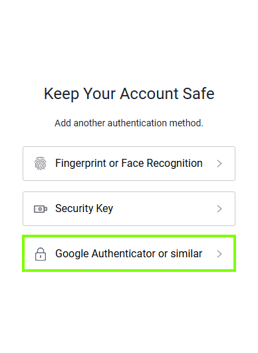
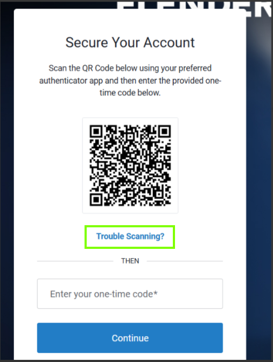
Within the registration process, select the option "Google Authenticator or similar".
Step 3
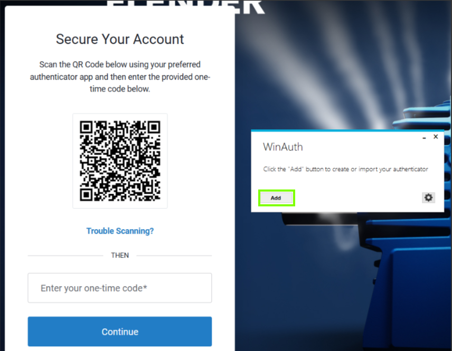
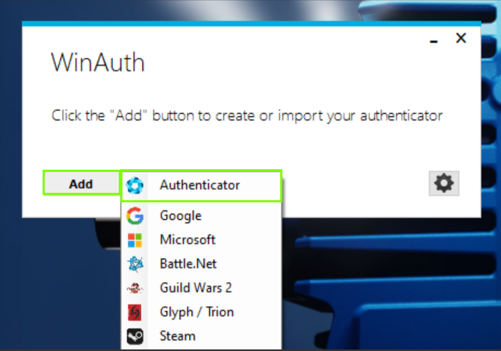
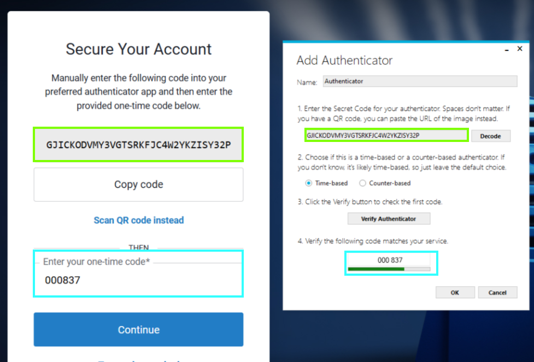
Open WinAuth in parallel and create an authentication option using the "Add" button, selecting the "Authenticator" option.
Step 4
The QR code cannot be used directly in WinAuth. After clicking on "Trouble Scanning", the code for authentication will also be displayed.
Enter this code in WinAuth via "Secret Code" and click on "Verify Authenticator" so that the one-time code can be generated. Then enter this code in the field provided.
Step 5
Finally, a password must be assigned.

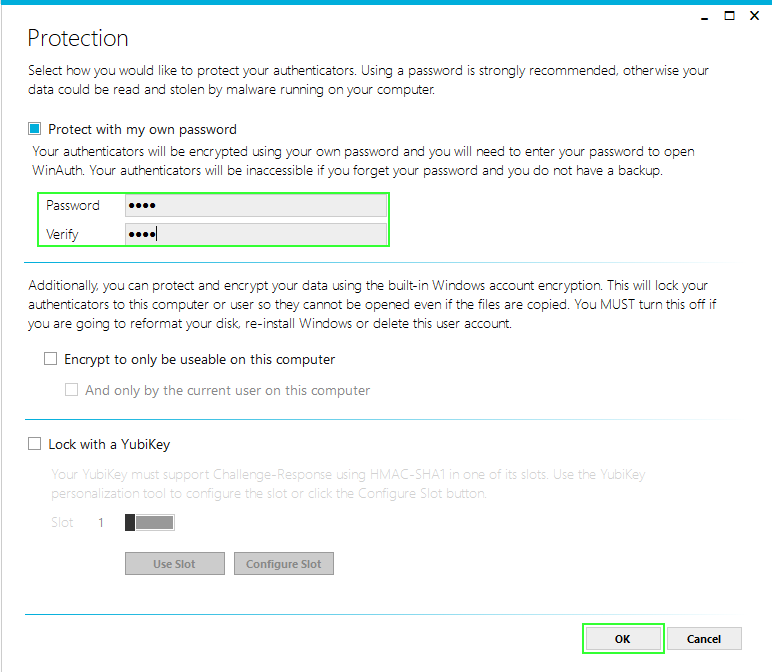
→ WinAuth can then be used as a second factor for authentication.
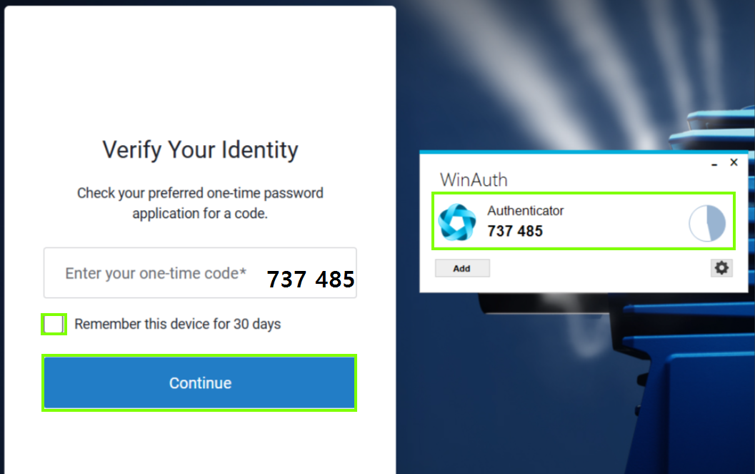
After entering the OTP, you can optionally set it to be remembered for 30 days, and only after this period has expired will a new one be generated via WinAuth.